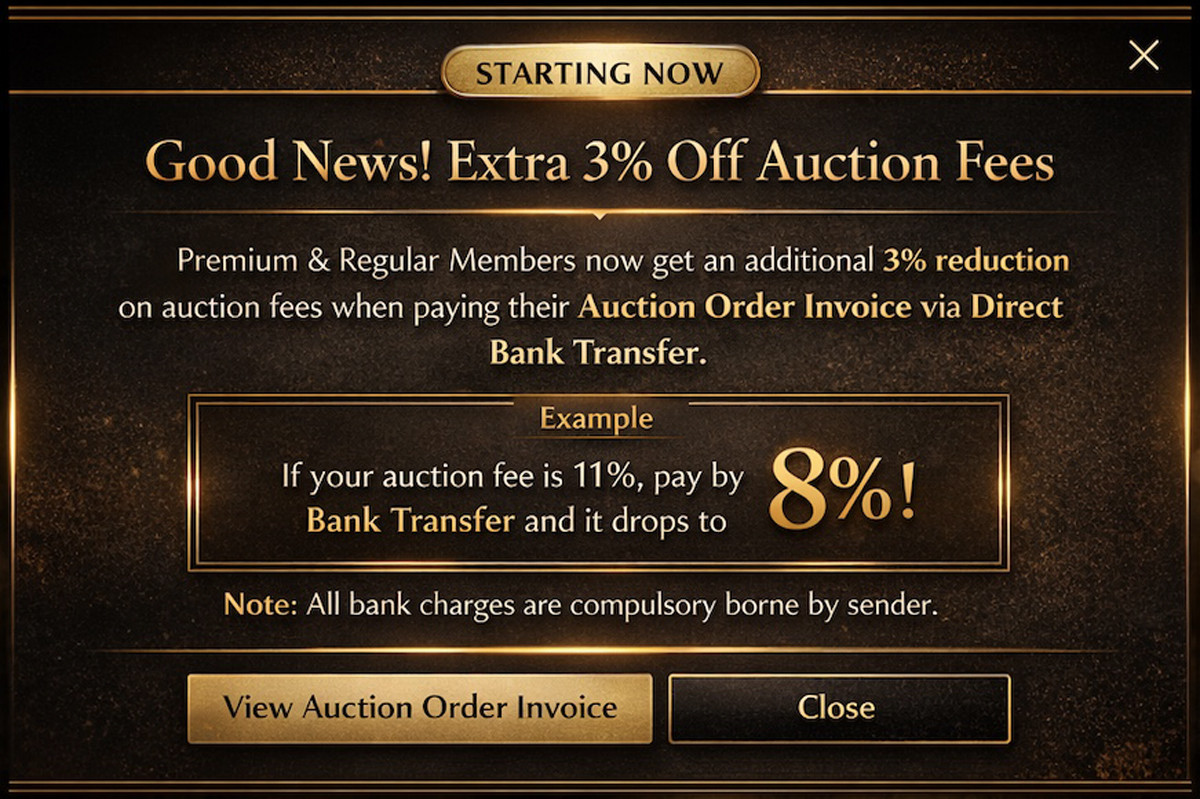


New User start bid guide
How to Start Bidding
Learn the full bidding process step by step — from registration and wallet top-up to placing bids, checking won items, paying invoices, and tracking shipment.
Everything You Need Before Your First Bid
Follow these simple steps to register your account, prepare your wallet, place bids confidently, and complete your order smoothly.
Create Your Account
Register as a Regular Member and complete your profile details before joining the auction.
Secure Auction Bidding
To keep our auctions fair and reliable, a temporary bid security amount will reserved in your wallet during the auction.
The reserved amount will be released back after the auction ends.
Track Your Order
After winning and paying, choose your shipping address and monitor delivery status anytime.
Your Bidding Journey
From sign-up to delivery tracking, here is the full process in one organized page.
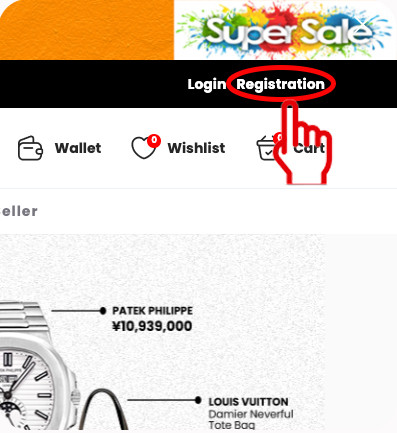
Register & Log In
Click the top right corner of the website and create your Regular Member account to get started.
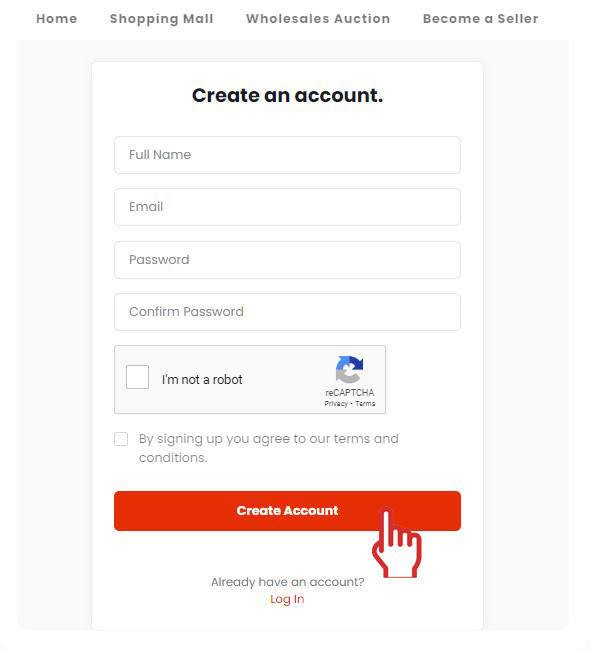
Create Account
Enter your email address and password, then click Create Account.
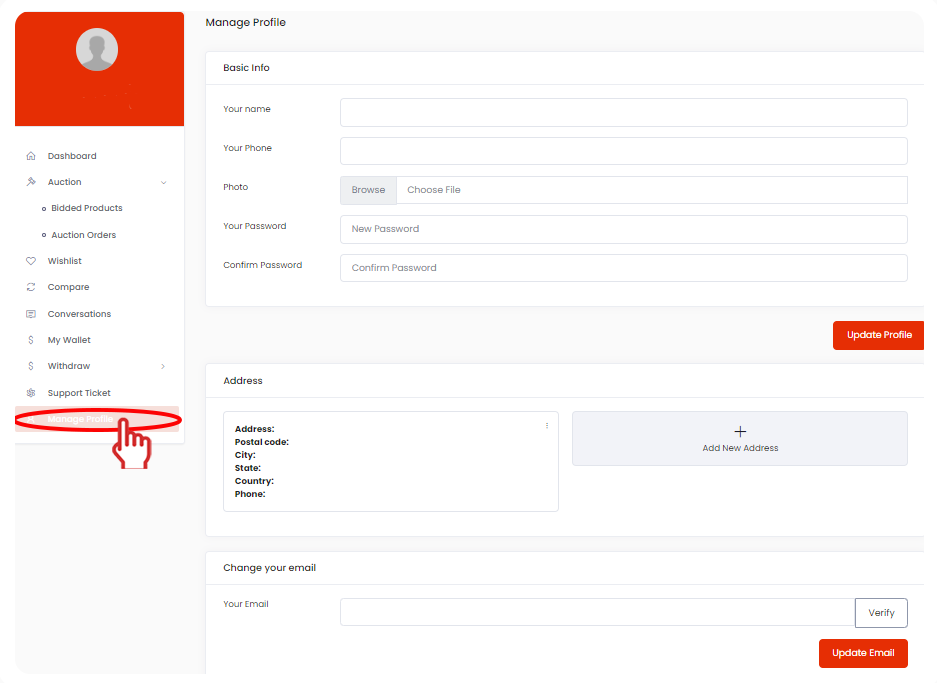
Manage Your Profile
Update your password, shipping address, and phone number to make sure your account is ready for ordering and delivery.
Top Up Your Wallet
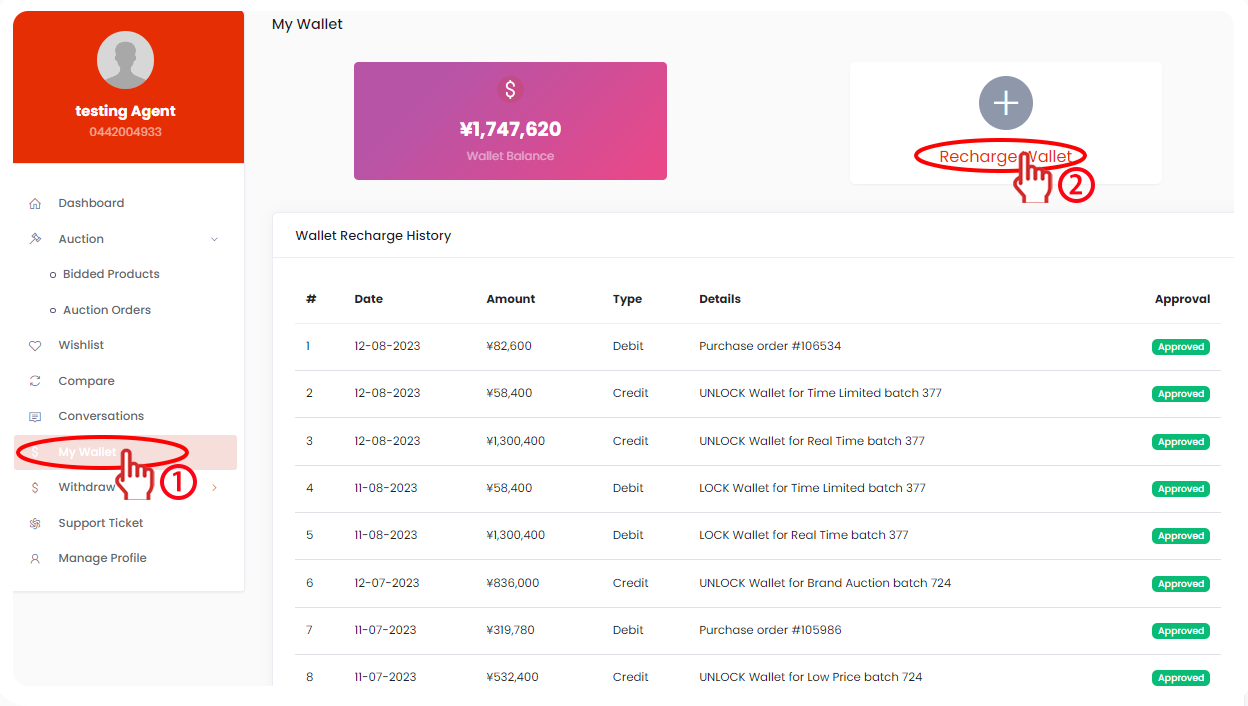
Go to My Wallet and select Recharge Wallet. Minimum wallet top-up required is JPY 1,000.
Browse Auction
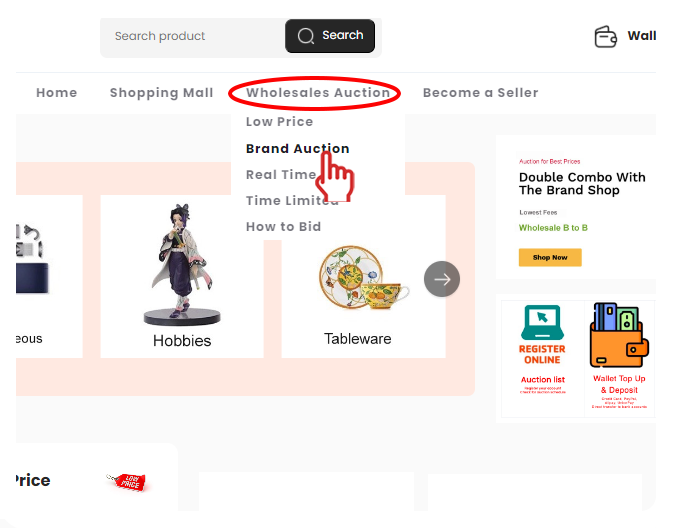
Choose an ongoing auction and browse available items. You may also review the auction schedule in advance.
Place Your Bids
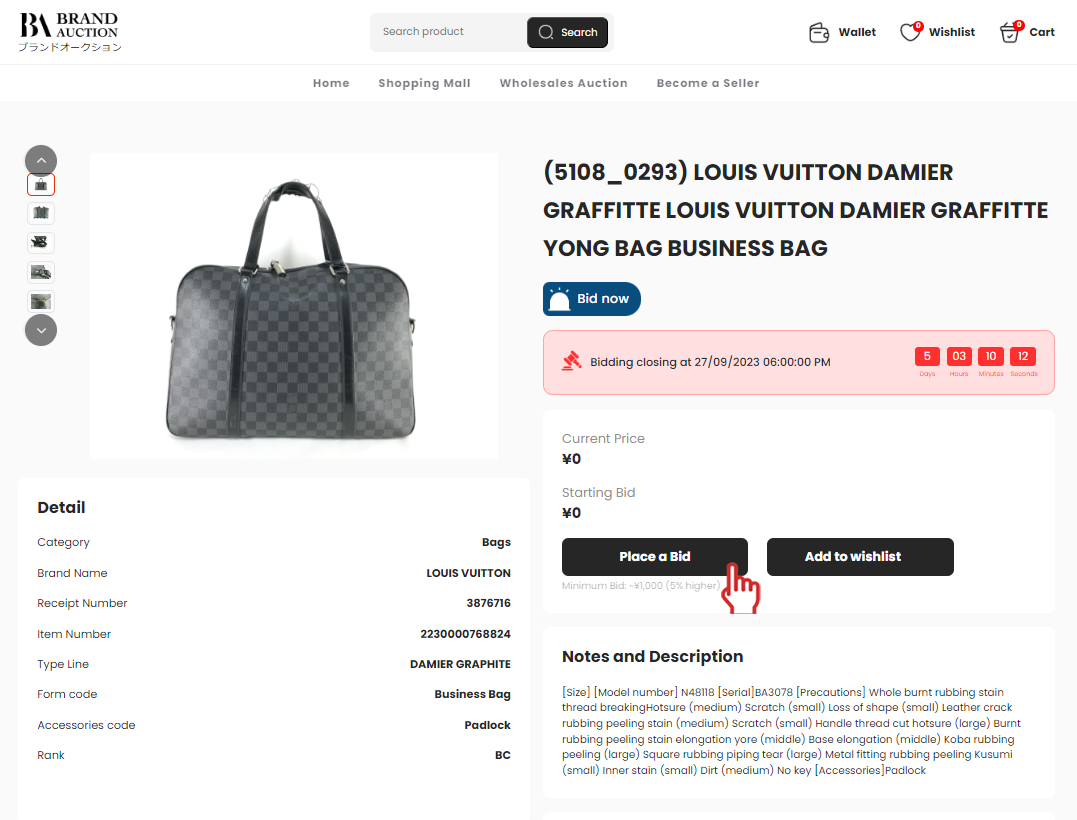
Open the item you want, enter your bidding amount, and click Place Bid.
Check Status of Bids
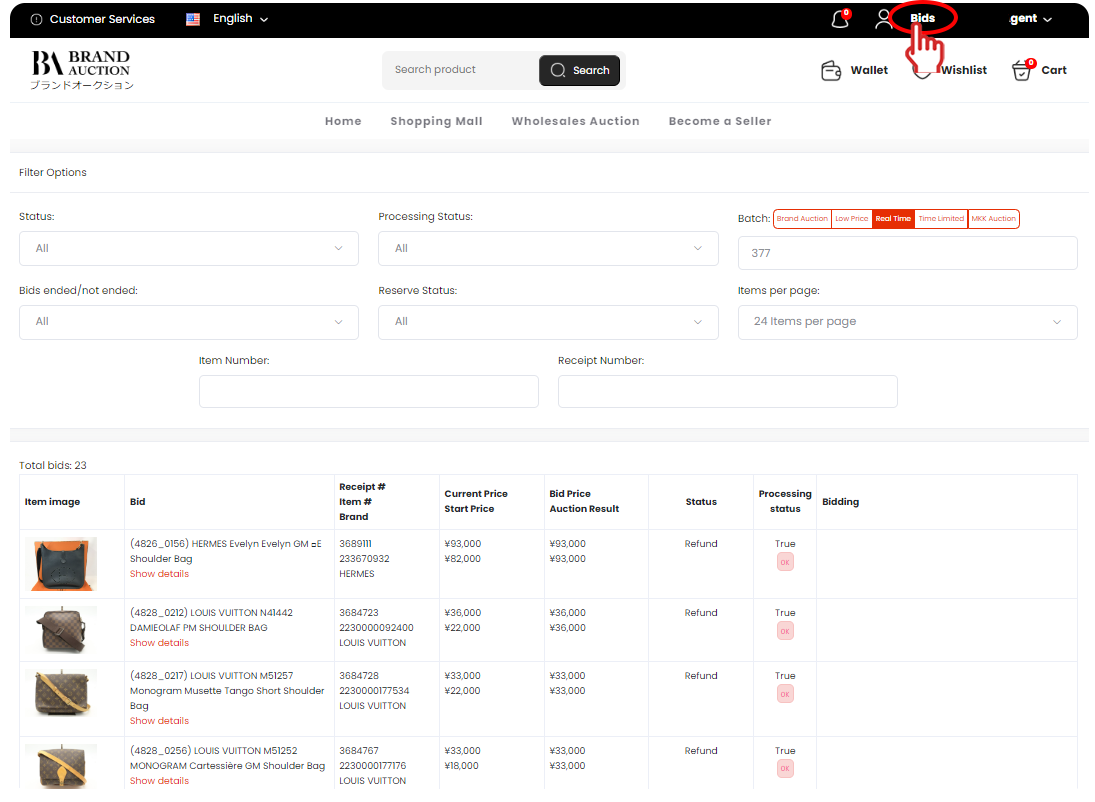
Go to Bids, select the batch, and review your status. You may modify or cancel bids except in restricted auctions.
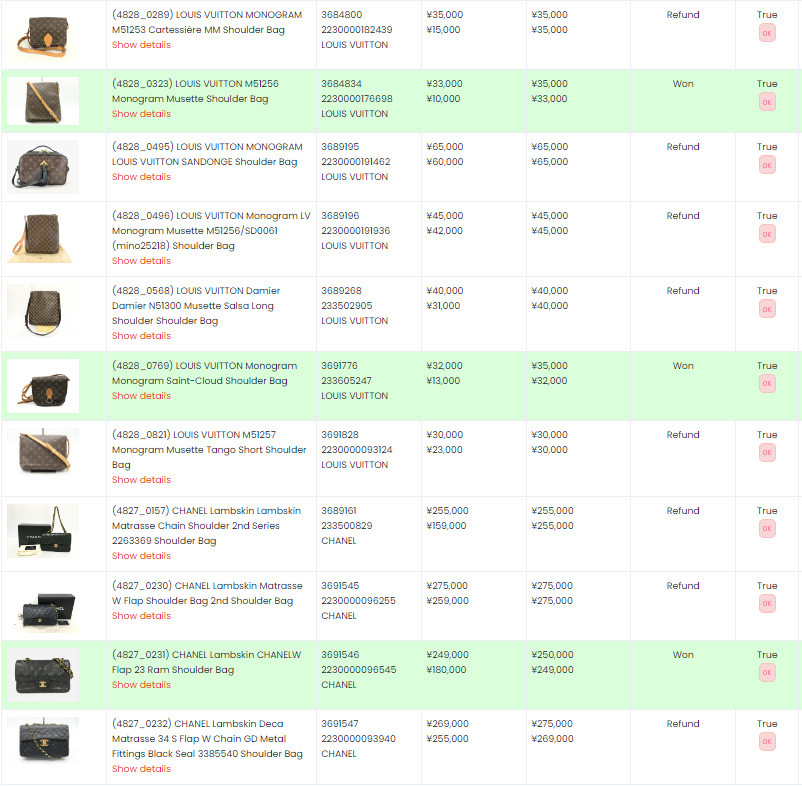
Check Won Bids
Items you successfully win will appear in green with the status WON.
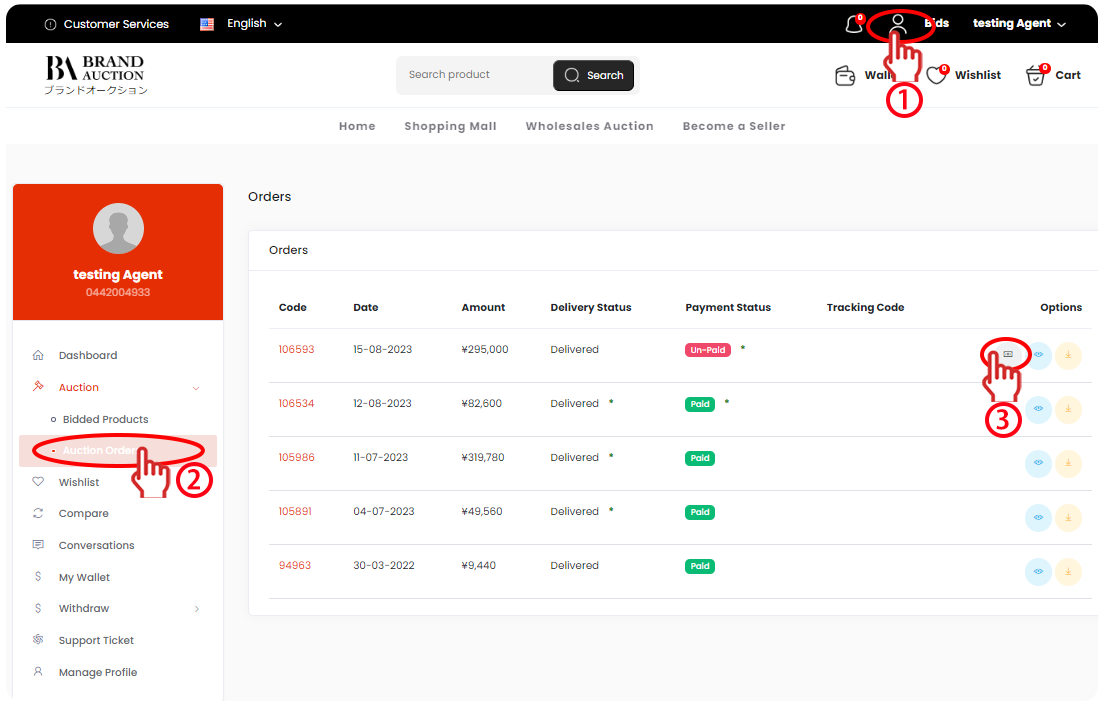
Order Invoices & Payment
Go to Auction Orders and click the money icon to proceed with payment.
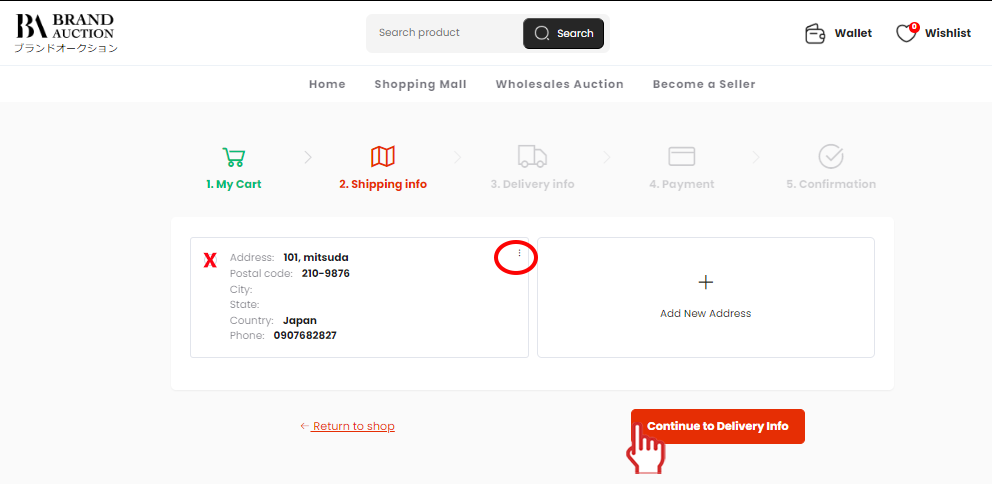
Select Shipping Address
Choose your delivery address, confirm payment, and continue the shipping process.
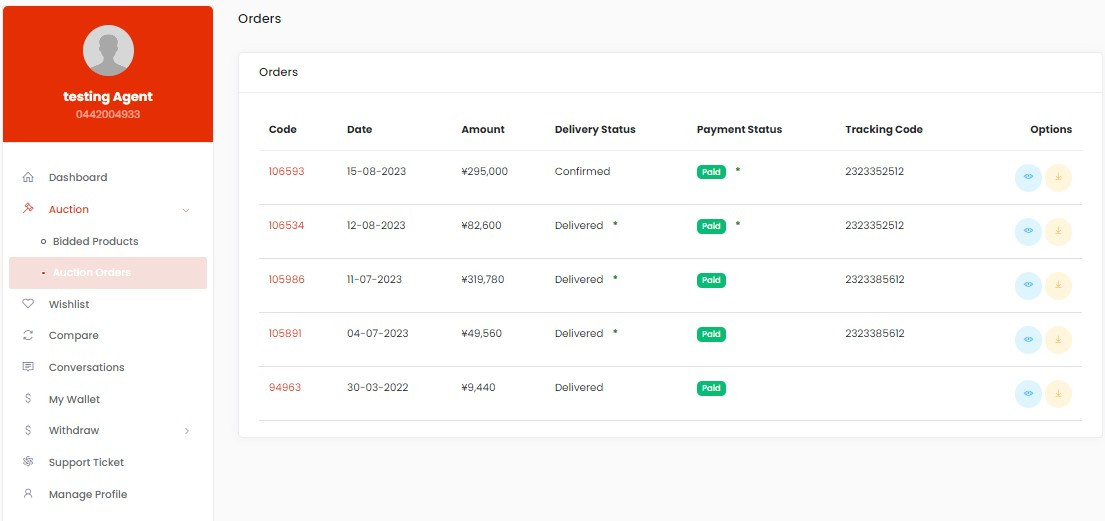
Shipping Tracking Number
Once your parcel is shipped, the tracking number will appear and the final status will update to Delivered.
People Also Ask
Quick links to the most important bidding and order questions.
Bidding & Order FAQ
Click any question below to read the full guide.
Need More Help With Bidding?
Visit our detailed bidding guide and FAQ page to understand bid status, reserve price, invoices, wallet handling, shipping flow, and more.
Click Here to Understand More: Bidding FAQ